

KUNBUS Revolution Pi
If your logiccloud Control Runtime is running on a KUNBUS Revolution Pi, you can access the local I/O through the piControl driver. To do this, a new connection of type RevPi must be created.
The RevPi documentation has these parts:
- Setting up the Revolution Pi: configure the I/O modules with PiCtory and install logiccloud Control.
- Creating a RevPi connection and mapping the signals (this page).
- RevPi Browsing: select the signals directly from the device.
- Checking signals with SSH: read and write signals on the device.
- Troubleshooting: solve common problems.
Prerequisites
Section titled “Prerequisites”Before creating a RevPi connection, you need:
- A KUNBUS Revolution Pi with the piControl driver installed and running
- A PiCtory configuration saved to the device
- The device-level RevPi setup script (
linux-setup.sh) executed at least once - The piControl driver restarted after any changes to the PiCtory configuration
See Setting up the Revolution Pi for these steps.
Creating a RevPi Connection
Section titled “Creating a RevPi Connection”- In your project, navigate to the Runtimes section
- Open the menu (⋮) of your runtime and select Add connection
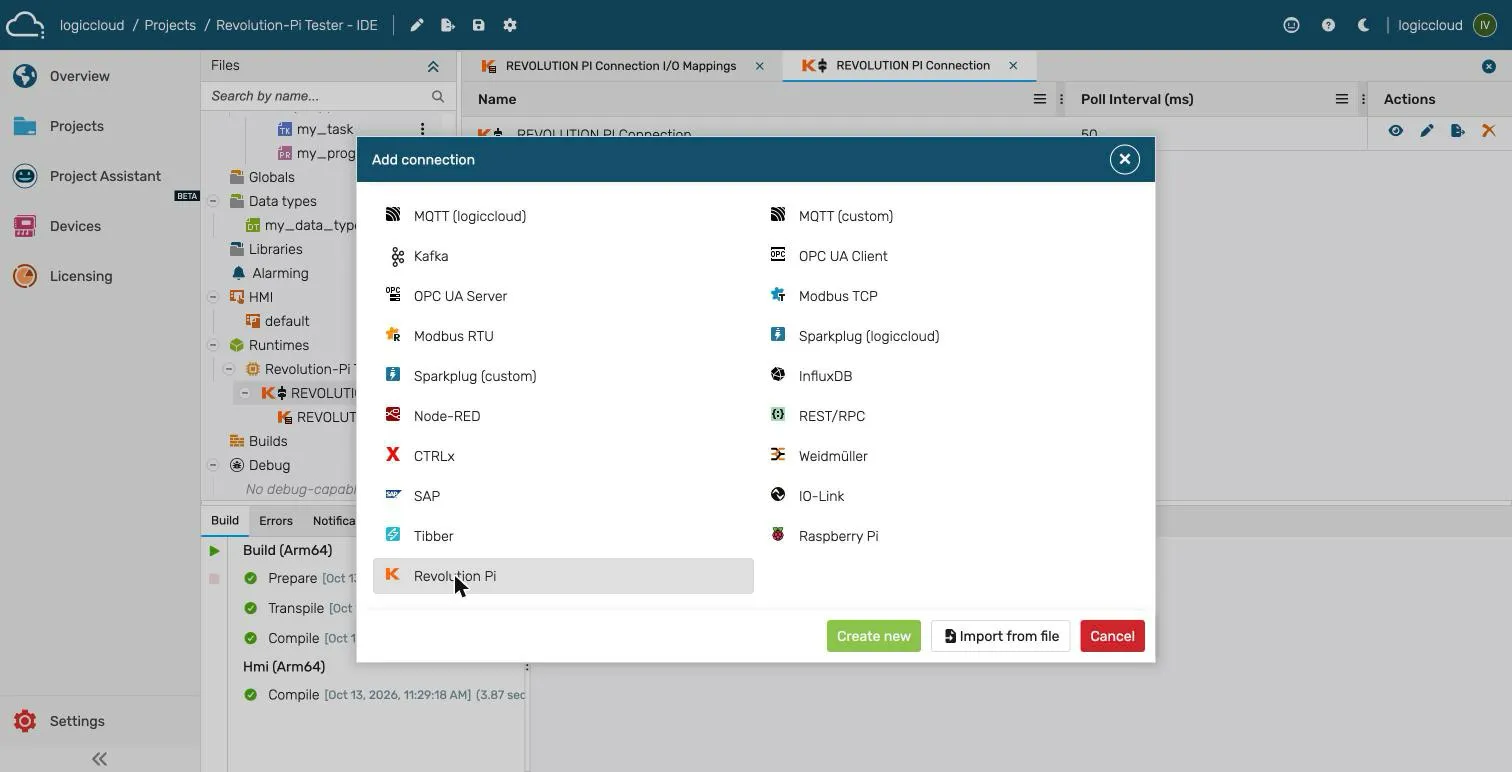
- Select Revolution Pi and click Create new
- Fill in the connection details:
Connection name: Name of the connectionConnection description: Description of the connection, optionalPoll interval: Interval in milliseconds at which the RevPi I/O are read and written to (default: 50 ms)
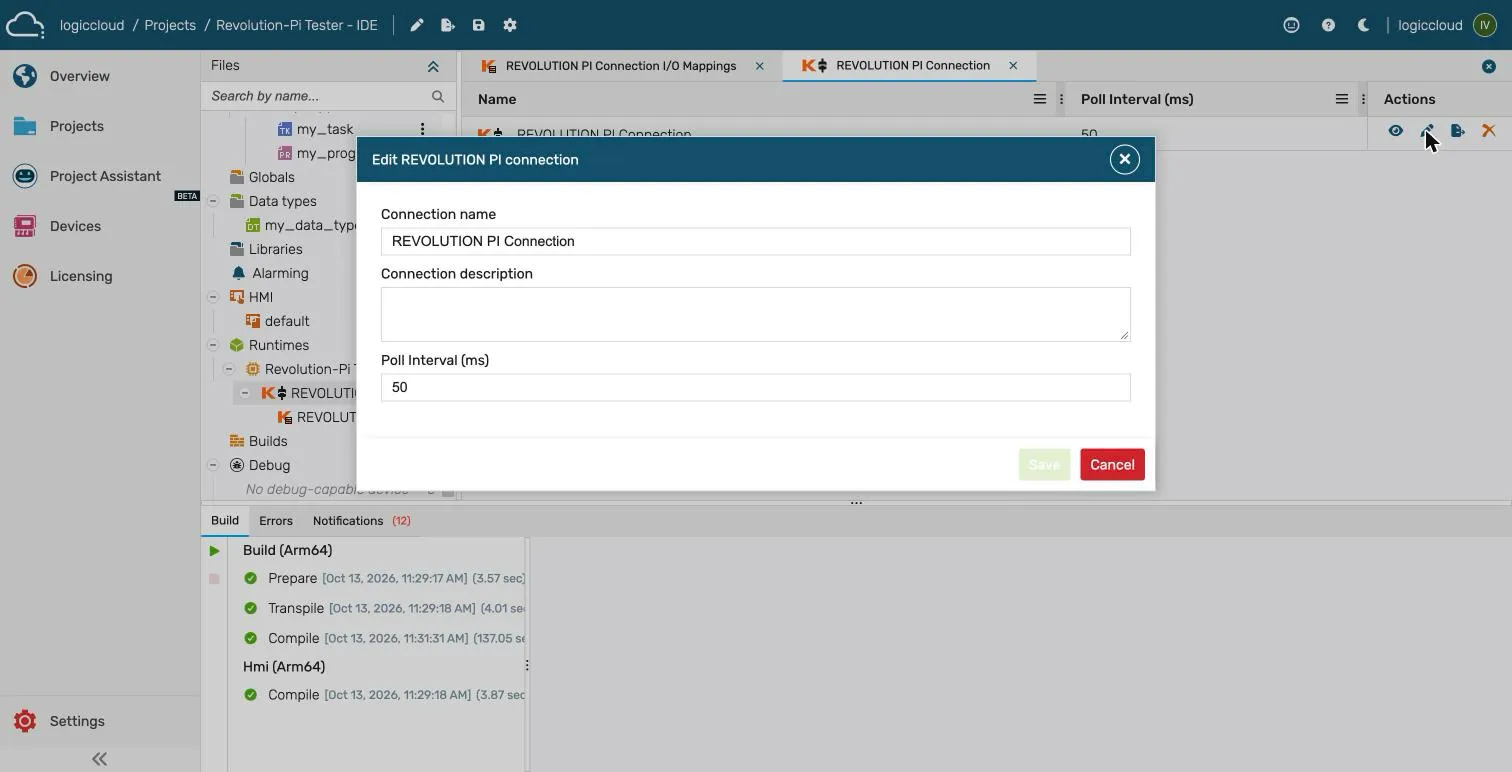
- Click Save to create the connection
Mapping process variables
Section titled “Mapping process variables”The process variables can be mapped to RevPi signals via the mappings table. To do this, either add individual variables or use the Browse feature to select variables from the device.
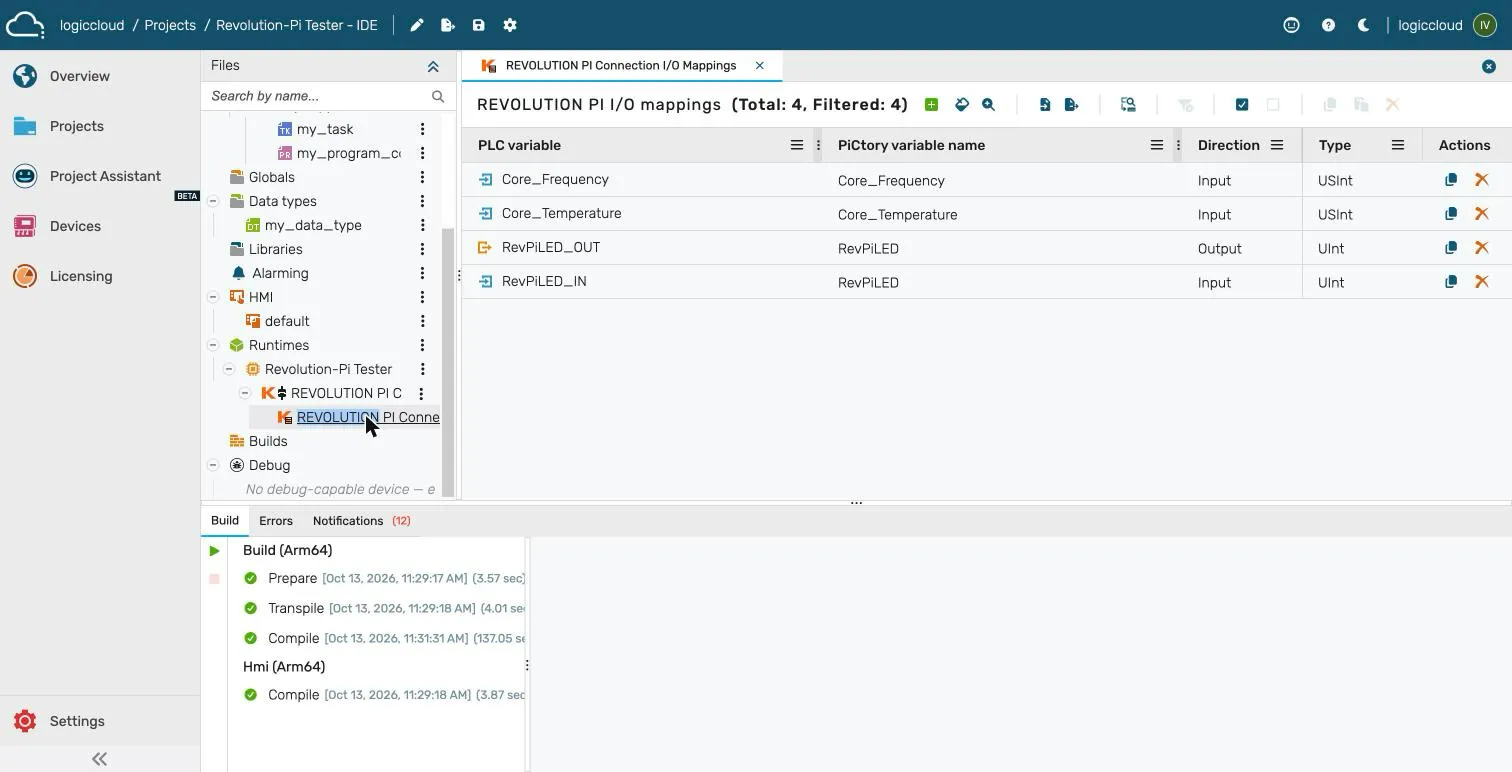
The mappings table has the following columns:
| Column | Description |
|---|---|
| PLC variable | Name of the LogicCloud access variable |
| PiCtory variable name | Name of the signal in PiCtory (must match exactly, maximum 31 characters) |
| Direction | Direction of data flow: input (RevPi → PLC) or output (PLC → RevPi) |
| Type | IEC 61131-3 data type: BOOL, BYTE, SINT, USINT, WORD, INT, UINT, DWORD, DINT, UDINT, REAL |
The bit length of the type must match the bit length of the signal in PiCtory. For example, an 8-bit signal can use BYTE, SINT or USINT. A mapping with a different bit length is skipped on the device.
Naming rules
Section titled “Naming rules”Variable names in PiCtory must:
- Match the exact name in PiCtory (case-sensitive)
- Be at most 31 characters
- Follow the pattern
^[A-Za-z][A-Za-z0-9_.]*$(start with a letter, then letters, digits, underscores or dots)
A name that does not match any variable in PiCtory is silently skipped by the connector on the device and only logged there. The cloud cannot verify a name that you type by hand, so check the device logs if a mapping does not work. To avoid typing mistakes, use Browse to pick names directly from the device.
IN_OUT access variables
Section titled “IN_OUT access variables”One signal may be mapped twice: once as input and once as output. This enables read/write access to the same variable (IN_OUT access in IEC 61131-3).
Poll interval
Section titled “Poll interval”The poll interval sets how often the connector reads and writes RevPi I/O. The default is 50 milliseconds, which matches the Raspberry Pi connector. For most applications this is sufficient. Lower values increase CPU usage; higher values reduce responsiveness.
Example: reading and writing signals
Section titled “Example: reading and writing signals”This example uses only signals of the base module. It needs no I/O module and no wiring, so it is a good first test of a new device.
| PLC variable | PiCtory variable name | Direction | Type | Purpose |
|---|---|---|---|---|
Core_Temperature | Core_Temperature | input | USINT | CPU temperature in °C |
Core_Frequency | Core_Frequency | input | USINT | CPU clock frequency |
RevPiLED_OUT | RevPiLED | output | UINT | Writes the front LEDs (see LED values) |
RevPiLED_IN | RevPiLED | input | UINT | Reads the LED value back |
RevPiLED is mapped twice, as described in IN_OUT access variables. The input mapping reads back the value that the output mapping wrote.
- Create the four access variables in your project with the data types from the table.
- Add the four mappings to the RevPi connection, or select the signals with Browse.
- Write a program that uses the variables, for example:
// Switch LED A1 to red (value 1 on a RevPi Connect 4) when the CPU is warmer than 60 °CIF Core_Temperature > 60 THEN RevPiLED_OUT := 1;ELSE RevPiLED_OUT := 0;END_IF;- Build the project and install the runtime on the RevPi.
- Check the values:
- In the portal,
Core_Temperaturechanges slowly with the CPU load.RevPiLED_INshows the same value asRevPiLED_OUT. - On the device, compare with
piTest -1 -r Core_TemperatureandpiTest -1 -r RevPiLED. See Checking signals with SSH.
- In the portal,
Browsing RevPi signals
Section titled “Browsing RevPi signals”To simplify mapping setup, use the Browse feature to browse available signals on the device. See RevPi Browsing for details.